
Before you start
Tabula runs on macOS 12 or later, on Apple Silicon and Intel Macs, and it is free with two zones. Download it and keep your old browser installed: nothing in it changes, and you can go back and forth while you settle in.
1. Bring your sign-ins
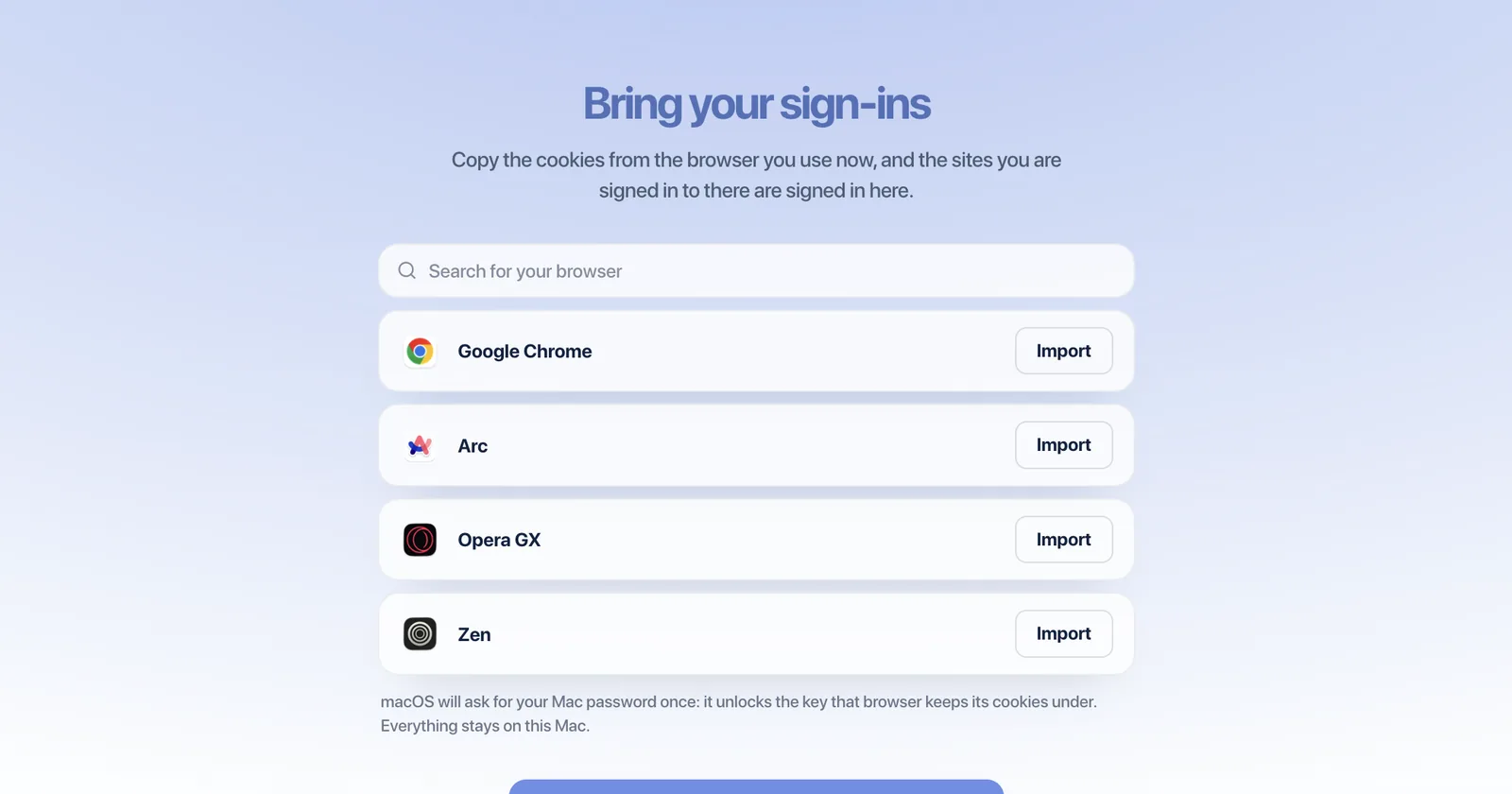
The first time you open Tabula, a short setup walks you through a few screens. The second, Bring your sign-ins, lists the browsers on your Mac with an Import button beside each — the picture at the top of this page. Press it for the browser you use most, and the sites you are signed in to there are signed in here too.
It works with Chrome, Arc, Dia, Brave, Edge, Vivaldi, Opera, Opera GX, Comet and Chromium, and with Firefox and Zen. For the Chrome-based ones macOS asks for your Mac password once, to unlock the key that browser keeps its cookies under. Everything stays on your Mac. Safari is the exception: macOS keeps its cookies behind Full Disk Access, so it is not on the list.
Skipped it? Settings › General › Import from Browsers does the same thing any time. A few sites tie a sign-in to the browser it was made in and will ask you once more; most do not.
2. Pick a layout and a color
Next, the setup asks where your windows should be listed: in a sidebar, like Arc and Zen, or in a dock along the top, like the browser you know. Either way every site is still a live window on the canvas behind it — this only decides where the list lives.
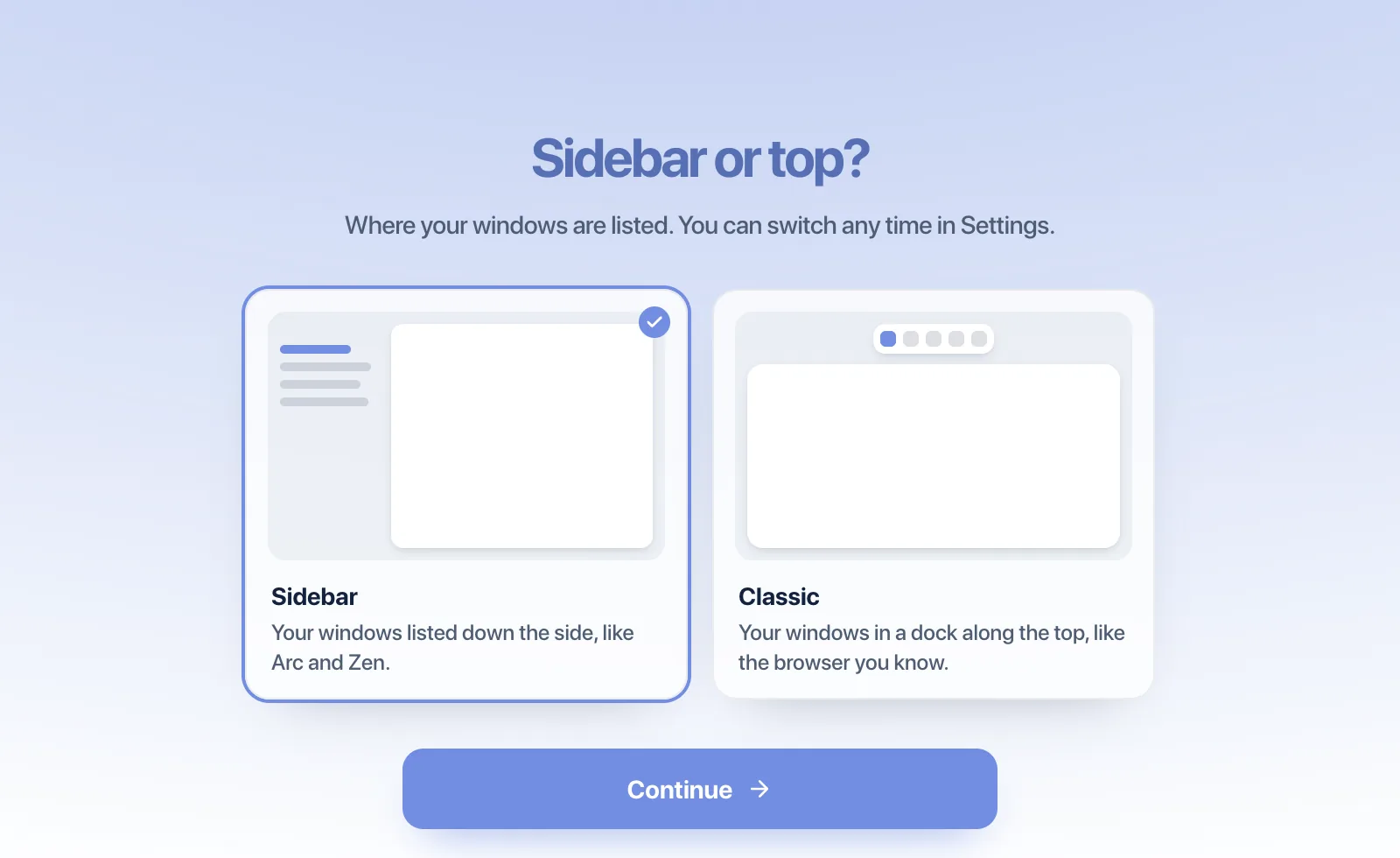
The color you pick paints the sidebar and toolbar. It is only a starting point; each zone can have its own.
3. Choose what to open, and how private
“What do you keep open?” offers a dozen common apps — Gmail, YouTube, ChatGPT, Claude, Notion, Figma, GitHub, Slack and more. Each one you tick becomes a window on your canvas, side by side, already signed in if you imported in step one.
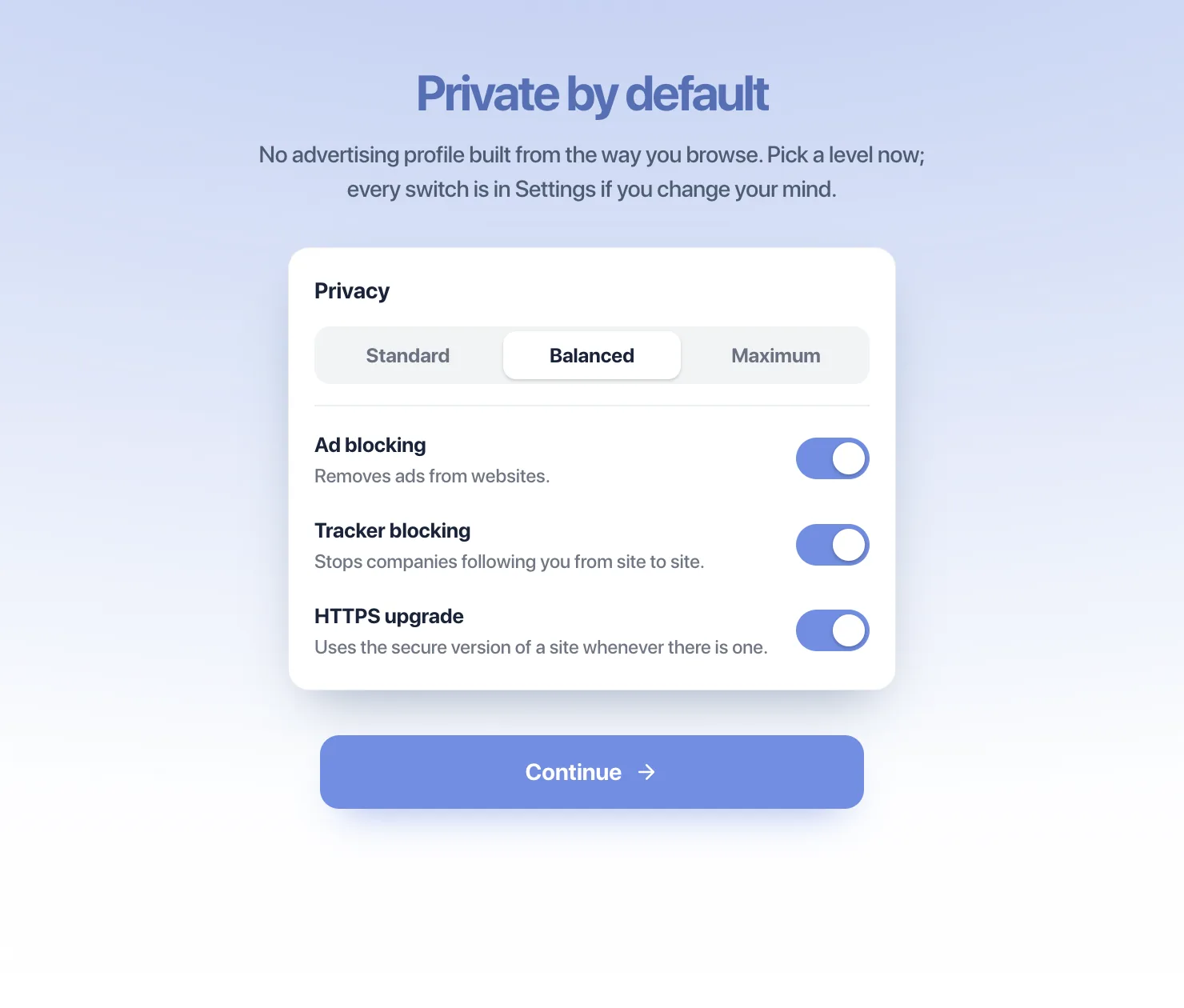
Then Private by default sets ad blocking, tracker blocking and HTTPS upgrades. Balanced is selected for you; every switch is in Settings › Privacy later.
4. Add your extensions
If you came from Chrome, Arc, Brave, Edge, Vivaldi, Opera or Dia, open Settings › Extensions › From Your Other Browsers. It lists what you have installed there; press Add on the ones you want. More on extensions in Tabula.
5. Make it your default browser
The setup offers this too. Later, it is in System Settings › Desktop & Dock › Default web browser. Links you click in Mail, Slack or anywhere else then open as windows on your canvas.
Coming from Arc
Arc’s sign-ins and extensions come over as above. Its sidebar does not yet: Tabula has no tab importer. To keep every space and pinned tab safe while you rebuild the dozen you actually use, save them with our free Arc exporter. How Arc and Tabula compare.
Questions
- Does importing change anything in my old browser?
- No. Tabula reads a copy of that browser’s cookies and leaves everything in it as it was. You can keep using both.
- Why does macOS ask for my password?
- Chrome, Arc, Brave and the other Chromium-based browsers encrypt their cookies with a key kept in your Keychain. Your Mac password unlocks that key once, and nothing leaves your Mac.
- Can I import from Safari?
- Not yet. macOS keeps Safari’s cookies behind Full Disk Access, so Tabula leaves them alone. Sign in to the few sites you need once, and they stay signed in.
- Do my saved passwords and history come over?
- No — the import brings your sign-ins (cookies), not saved passwords, history or open tabs. For passwords, add your password manager’s extension.