
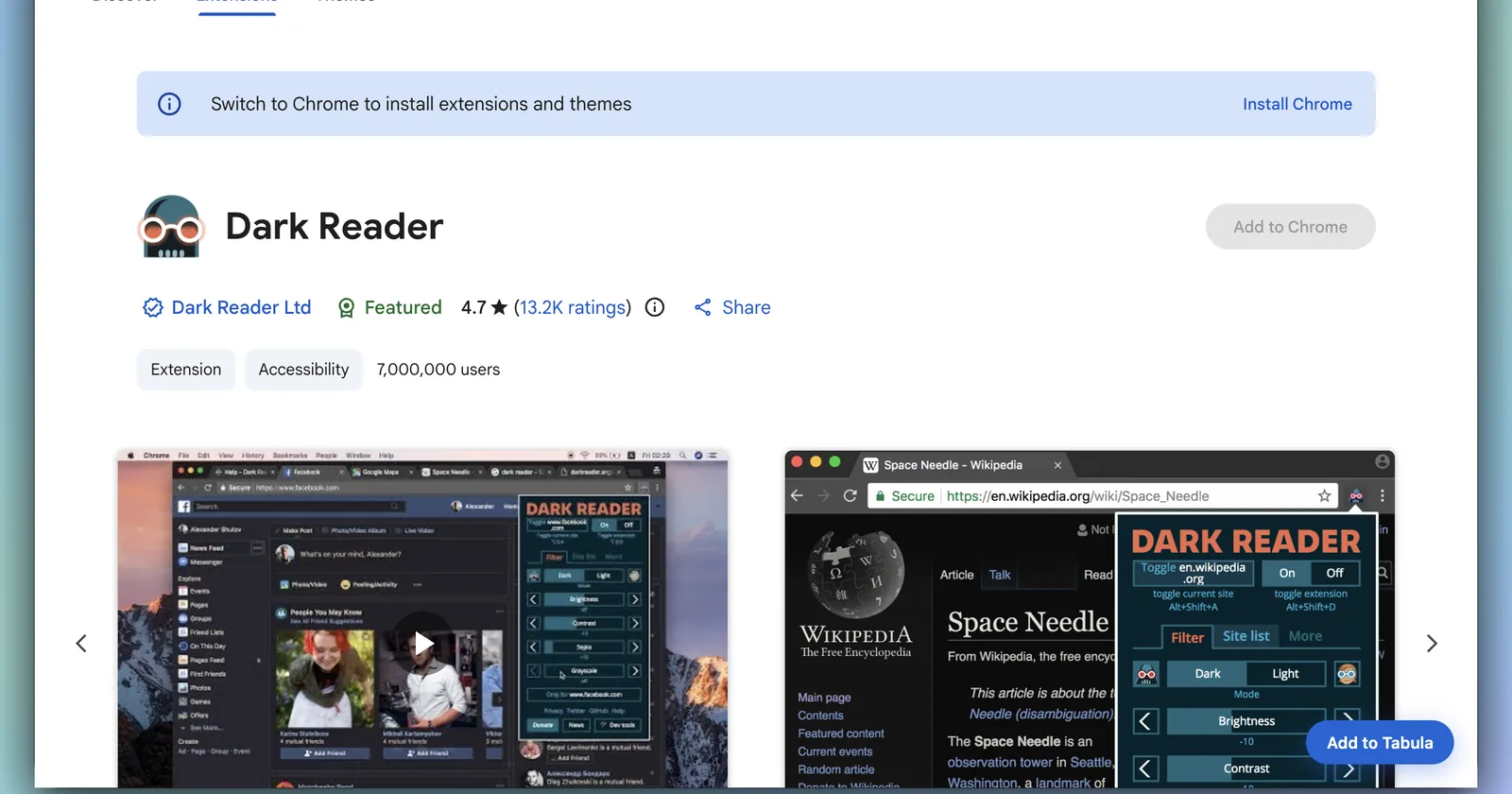
From the Chrome Web Store
Open Settings › Extensions and press Open… next to Chrome Web Store. The Store opens as a window on your canvas, like any other site. Find the extension you want and press the blue Add to Tabula button in the bottom-right corner, as in the picture above. Ignore the Store’s own “Add to Chrome” button and its “Switch to Chrome” banner — Google shows those to every browser that is not Chrome.
macOS then asks once — “Add ‘Dark Reader’ to Tabula?” — with a line saying which sites the extension can read and change. Nothing is installed until you press Add Extension. A web page can only ever ask.
From the built-in catalog
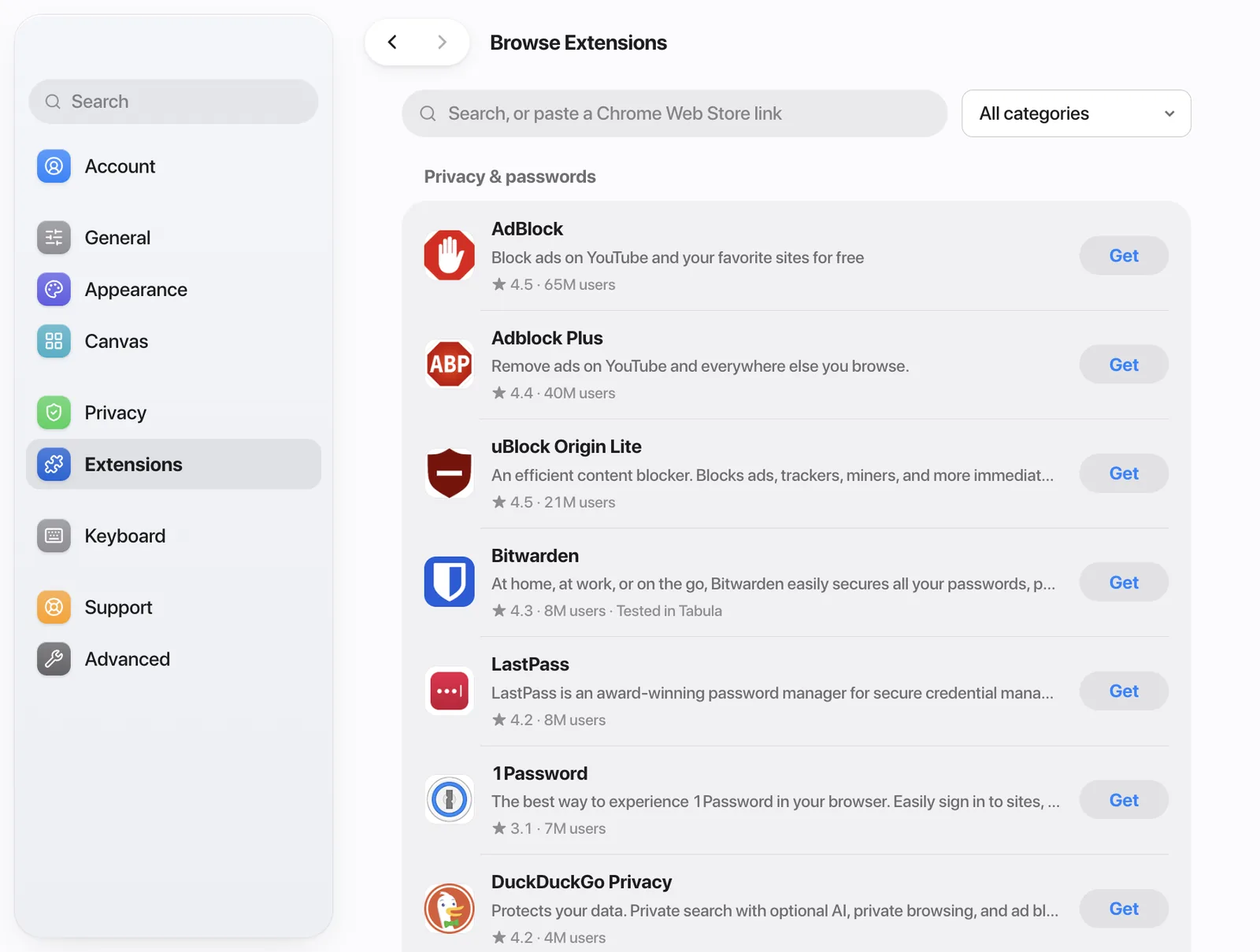
Settings › Extensions › Browse Extensions lists 123 popular extensions, sorted into categories: privacy and passwords, writing and AI, video, reading, focus, work, capture and developer tools. Search by name or paste a Web Store link, then press Get — it installs straight from the Chrome Web Store, with no window to open. The ones marked “Tested in Tabula” are ones we have checked ourselves.
From the browser you use now
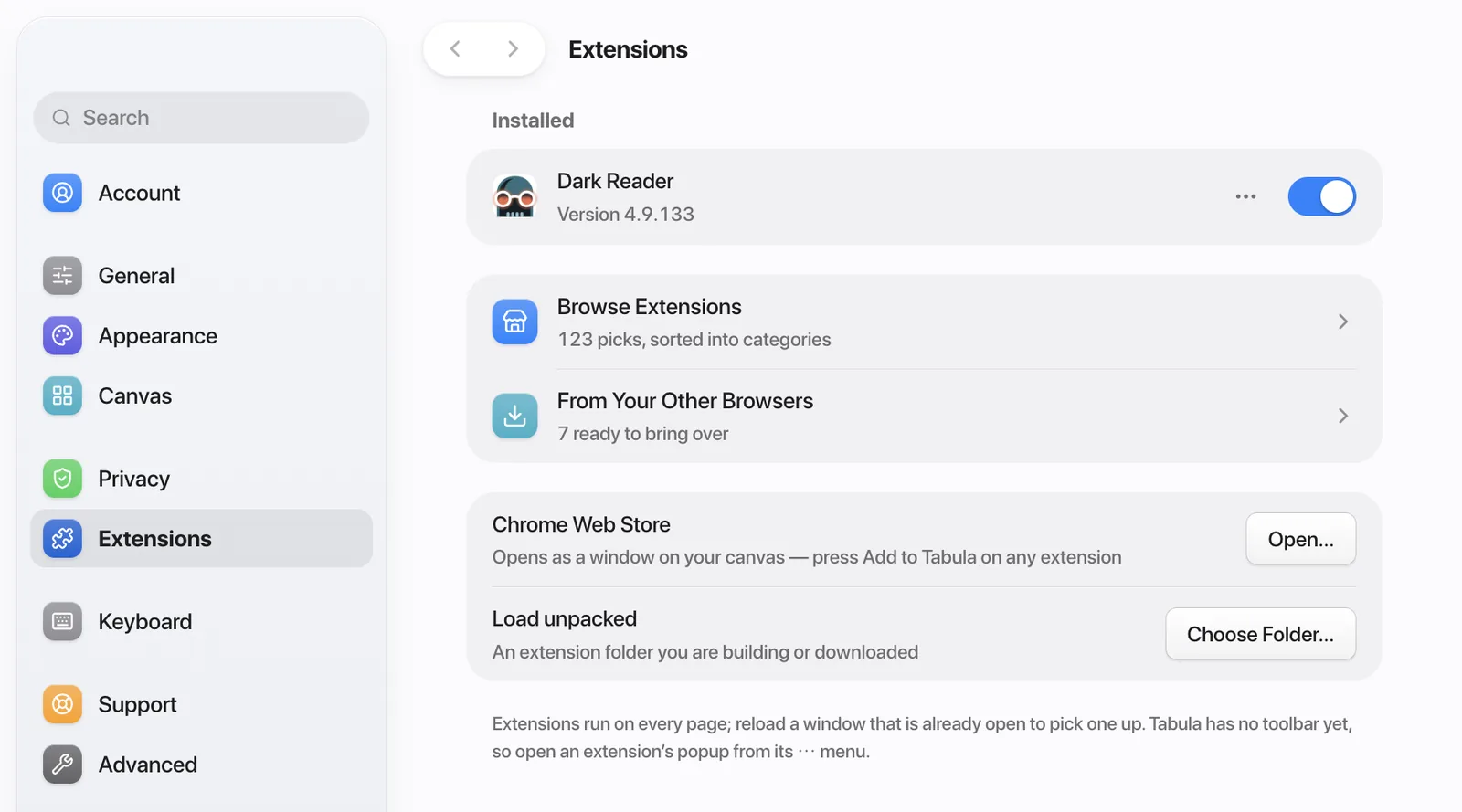
If you use Chrome, Arc, Brave, Edge, Vivaldi, Opera or Dia, Settings › Extensions › From Your Other Browsers lists the extensions already installed there. Press Add next to any of them. Tabula copies the extension itself, not the data it saved, so you sign in to something like a password manager once more. Firefox and Zen do not appear here: their add-ons are not Chrome extensions.
Building your own? Load unpacked takes an extension folder, and picking the same folder again updates it.
Turning them on, off, and opening them
Everything you add is listed under Installed. The switch turns an extension off without removing it. The ⋯ menu opens its popup, its options page, or removes it.
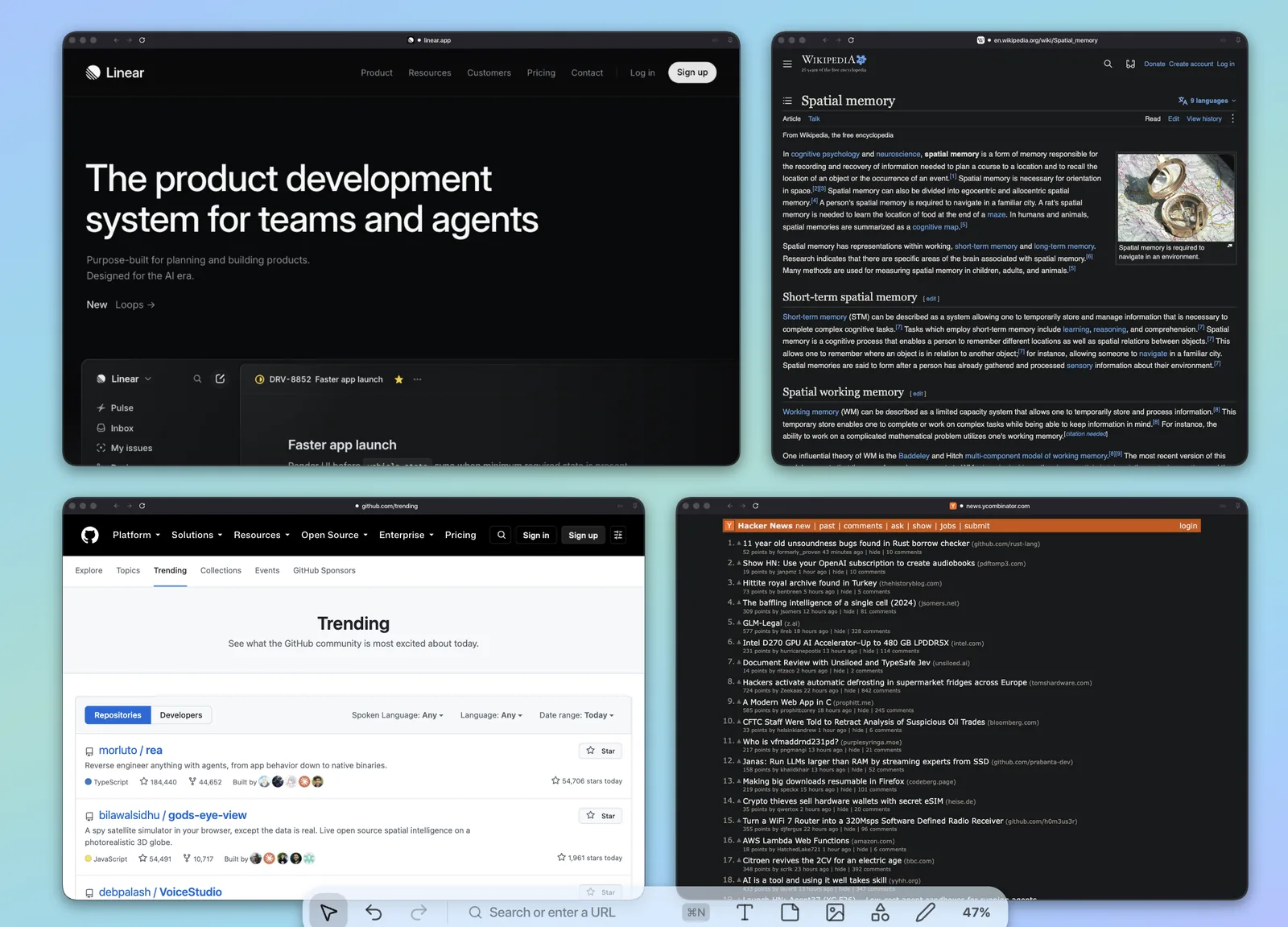
An extension runs on every page from the moment you add it. A window that was already open picks it up when you reload it — which is why, below, the two pages reloaded after installing Dark Reader went dark and the one that was not stayed light.
What works differently from Chrome
- No toolbar yet. An extension’s popup opens from the ⋯ menu in Settings › Extensions, not from a button beside the address bar.
- Private canvases run none. Like Chrome’s incognito windows, a private canvas loads no extensions.
- Google windows keep their own copy. Gmail, Docs and other Google windows sign in separately, so a setting changed in a popup may not reach them.
- Settings stay on this Mac. Extension settings that Chrome syncs between computers are kept locally.
And before you add an ad blocker: Tabula already blocks ads and trackers itself. Test how well it blocks.
Questions
- Does Tabula support Chrome extensions?
- Yes, since version 0.2.37 (October 2026). Tabula is built on Chromium, the engine inside Chrome, and installs extensions from the Chrome Web Store, a built-in catalog or the Chrome-based browser you already use.
- Can I use Firefox add-ons in Tabula?
- No. Firefox add-ons are built for a different engine. Most popular ones have a Chrome version — search the catalog or the Web Store for the same name.
- Why does the Chrome Web Store say “Switch to Chrome”?
- Google shows that banner to every browser that is not Chrome, and its own “Add to Chrome” button does nothing in Tabula. Use the blue Add to Tabula button in the bottom-right corner instead.
- Do I still need an ad blocker extension?
- Usually not. Tabula blocks ads and trackers by itself — Settings › Privacy sets how strictly. Add an extension only if you want a specific one’s rules or controls.
- Is it safe to install extensions?
- As safe as in Chrome, which means: only install ones you trust. An extension runs on the pages you open, and before one installs from the Web Store, Tabula tells you which sites it can read and change.